

Free Wi-Fi is everywhere in London. From coffee shops and hotels to libraries and coworking spaces, getting online while you’re out is easier than ever. But just because a network is convenient doesn’t mean it’s completely safe.
Public Wi-Fi can expose you to risks such as fake hotspots, insecure connections, and unwanted access to your device. Whether you’re a student catching up on assignments, a tourist checking directions, or a remote worker answering emails, knowing how to protect your information matters.
The good news? Staying safer online doesn’t have to be complicated. This guide breaks down the most common public Wi-Fi risks in London and shares seven practical ways to protect your privacy while staying connected.
Where You Might Encounter Public Wi-Fi Risks in London
London is a city where you can get a surprising amount done with just a phone or laptop. You might start the morning answering emails in a café, check train times while exploring the city, and finish the day booking tickets from your hotel room. Free Wi-Fi makes all of that easier, especially when you’re travelling and trying to save mobile data.
But public networks aren’t all managed in the same way. A hotel might require guests to sign in, while a coffee shop may offer an open connection with no password at all. Some networks use modern security settings, while others provide very little information about how they’re protected. And unfortunately, a familiar-looking network name doesn’t guarantee that the connection is genuine.
One risk worth understanding is the evil twin hotspot. This is a fake Wi-Fi network designed to resemble a legitimate one. Imagine seeing two connections with almost identical names while sitting in a busy London café. If you choose the wrong one, you could end up sending traffic through a network controlled by someone else.
That doesn’t mean every public hotspot is dangerous. Most everyday browsing is already protected by HTTPS, and there are several straightforward ways to reduce your exposure. Checking the network name, keeping your device updated, and using a free vpn tool for additional connection privacy can all be part of a sensible routine.
The important thing is to know what you’re connecting to and understand which precautions actually make a difference. You don’t need to avoid public Wi-Fi entirely, but treating every unfamiliar network as automatically trustworthy isn’t a great idea either.
7 Practical Ways to Stay Safe on Public Wi-Fi
You don’t need advanced technical knowledge to improve your public Wi-Fi security. In fact, some of the most effective precautions take only a few seconds.
Here are seven habits worth developing, whether you’re spending a weekend in London or using shared networks every day.
1. Verify the Network Before Connecting
Imagine you’re sitting in a café near Covent Garden and your phone shows three networks with similar names. Which one belongs to the café?
Don’t guess. Ask a member of staff for the correct network name before connecting, especially if several options look legitimate. A fake hotspot may use a convincing name to encourage unsuspecting visitors to join.
Be cautious if a supposedly free network asks you to download unfamiliar software, install a security certificate, or provide unnecessary personal information. These requests aren’t automatically malicious, but they deserve closer inspection.
Also, remember that a password-protected hotspot isn’t necessarily trustworthy. A network can still be poorly configured or operated by someone you shouldn’t trust.
When in doubt, your mobile data connection is a reasonable alternative. It may be less convenient, but avoiding a suspicious network is better than trying to fix a problem afterwards.
2. Choose HTTPS Websites Whenever Possible
You might have noticed that most modern websites begin with “https://” rather than “http://”. That extra letter represents an important security feature.
HTTPS encrypts information exchanged between your browser and the website, helping protect sensitive details such as passwords, payment information, and messages while they’re being transmitted.
This is particularly relevant when you’re booking accommodation, checking your bank account, or signing in to an online service from a hotel or café.
Fortunately, most major websites and banking apps already use encrypted connections. Public Wi-Fi doesn’t automatically make those connections unsafe.
However, HTTPS isn’t a guarantee that a website is legitimate. A convincing phishing website can also have an encrypted connection. Always check the actual domain name before entering personal information, and never ignore a browser warning about an invalid security certificate.
If a website handling sensitive information doesn’t support HTTPS, it’s better not to enter your details.
3. Keep Your Devices and Apps Updated

Software updates aren’t exactly exciting. They’re easy to postpone, especially when you’re busy exploring London or working against a deadline.
But updates often fix security vulnerabilities that attackers could potentially exploit. An outdated browser, operating system, or application may expose your device to risks that have already been addressed in newer versions.
The simplest solution is to enable automatic security updates wherever possible.
Before travelling, check that your phone and laptop are running supported operating systems and that essential apps are up to date. If you’re carrying a work device, follow your organisation’s update policy rather than making changes without permission.
You don’t need to install every optional feature immediately, but security patches shouldn’t sit ignored for weeks.
A few minutes of preparation before leaving home can save you unnecessary trouble later.
4. Turn Off Automatic Wi-Fi Connections
Automatic Wi-Fi connections are convenient until your device joins a network you didn’t intend to use.
Some phones and laptops remember networks you’ve connected to previously and may reconnect when they encounter a matching name. In certain circumstances, this can create an opportunity for a malicious hotspot to impersonate a familiar network.
Review your device’s Wi-Fi settings and disable automatic joining for public networks you don’t regularly need.
You can still connect manually whenever you want internet access. The difference is that you’ll have a chance to check the network before your device joins it.
It’s also worth forgetting temporary networks after your visit. You probably don’t need your laptop to remember the Wi-Fi from a hotel you stayed in six months ago.
Keeping your saved network list tidy is a small but useful part of maintaining better online security.
5. Enable Two-Factor Authentication
Let’s say someone manages to obtain the password to one of your online accounts. Would that be enough for them to sign in?
With two-factor authentication, often called 2FA or multi-factor authentication, the answer is less likely to be yes.
This additional security step asks you to verify your identity through another method, such as an authenticator app, passkey, security key, or confirmation on a trusted device.
It’s especially valuable for email, banking, cloud storage, and accounts containing personal or work-related information.
Where available, passkeys and phishing-resistant authentication methods offer stronger protection than relying on passwords alone. Authenticator apps are also a useful option, while SMS verification is generally better than having no second factor.
Set these protections up before you need them. Trying to recover a compromised account while travelling is much more stressful than spending a few minutes securing it in advance.
6. Disable Unnecessary File Sharing
Public Wi-Fi networks connect many devices to the same networking infrastructure. Depending on how the network is configured, those devices may or may not be able to communicate directly with one another.
That’s why it’s worth checking your device’s sharing settings.
On a Windows laptop, choosing the public network profile can help apply more restrictive settings. On a Mac, review File Sharing and related services before connecting to unfamiliar networks.
You should also avoid leaving shared folders, remote access tools, or unnecessary network discovery features enabled when you’re working in public.
This doesn’t mean another café customer can automatically open your files. Modern operating systems include important protections, and many public networks separate connected devices.
Still, reducing unnecessary network access makes sense. If you aren’t deliberately sharing files with someone nearby, there’s usually no reason to leave those services available.
7. Use a VPN for Additional Privacy
A virtual private network, or VPN, can add another layer of protection when you’re using unfamiliar Wi-Fi.
Instead of sending traffic directly through the local network to its destination, a VPN creates an encrypted connection between your device and a VPN server. This makes it harder for someone monitoring the local network to inspect the traffic carried inside that connection.
That can be particularly useful when you’re moving between cafés, hotels, airports, and other shared networks throughout the day.
However, a VPN shouldn’t be your only security measure. It doesn’t replace HTTPS, automatically identify fraudulent websites, or prevent someone from stealing a password through phishing.
Think of it as one useful tool within a broader set of online safety habits.
For everyday browsing, combining a reputable VPN with updated software, secure websites, and strong account protection offers a more balanced approach than relying on any single feature.
How a VPN Helps Protect Your Privacy on Shared Networks
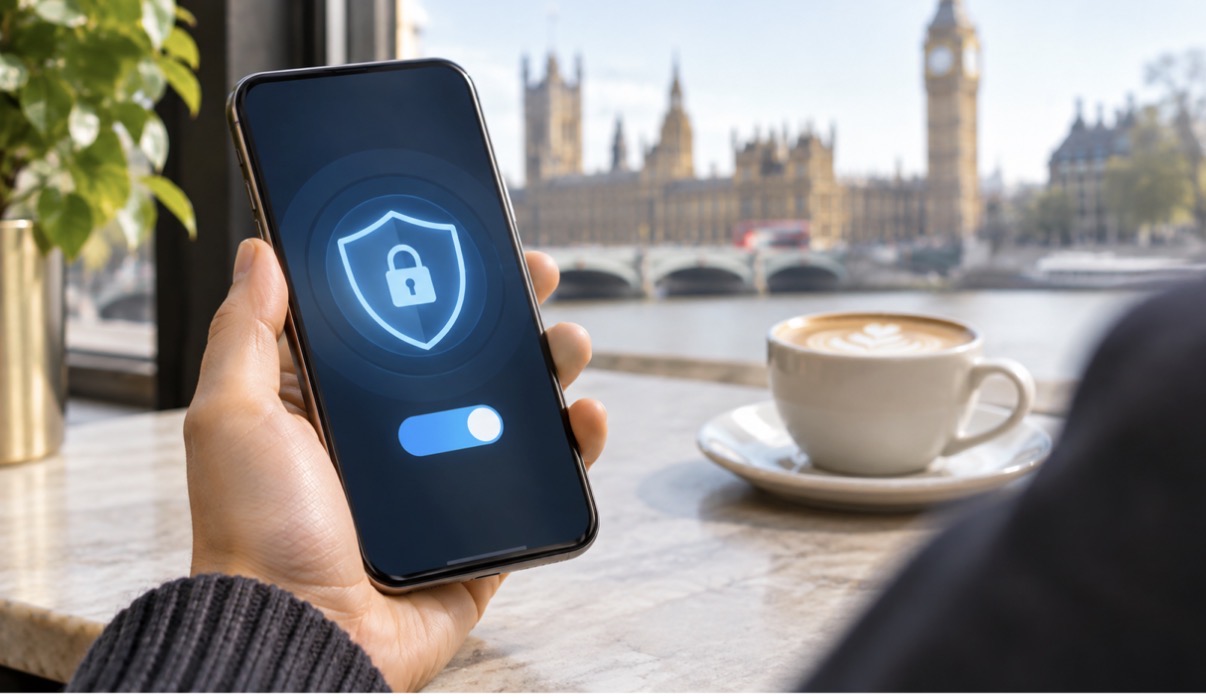
So, what does a VPN actually do when you’re connected to public Wi-Fi?
Imagine you’re working from a London coffee shop and checking several websites. Without a VPN, the local network handles your connection to those services. HTTPS already encrypts the contents of most modern web sessions, but some connection information may still be visible to the network operator.
A VPN adds an encrypted tunnel between your device and the VPN provider’s server. When properly connected, this limits what the local network can learn about the traffic passing through that tunnel.
It also means you’re placing some trust in the VPN provider instead of the local network. That’s why choosing a service with clear privacy policies and credible security practices matters.
If you’re preparing for a trip or regularly using shared Wi-Fi, you can download X-VPN on your phone or laptop before leaving home. X-VPN offers a free version that doesn’t require account registration, making it an accessible option for people who want an extra layer of connection privacy without immediately purchasing a subscription.
Installing your VPN in advance is generally more convenient than trying to download new security software through an unfamiliar hotspot.
There’s one practical detail worth remembering: some hotel and café networks require you to open a sign-in page before accessing the internet. You may need to complete that step before your VPN connects successfully.
A VPN also won’t solve every security problem. It can’t make a phishing website trustworthy, stop you from downloading malware, or protect confidential information after you’ve deliberately shared it with the wrong person.
For remote professionals, there’s another important distinction. A personal VPN doesn’t replace an employer-approved corporate VPN or other workplace security requirements. If you’re handling sensitive client information, follow your organisation’s policies first.
The goal isn’t to make public Wi-Fi magically risk-free. It’s to reduce unnecessary exposure while keeping your everyday internet experience practical.
Building Safer Wi-Fi Habits in Everyday London Life
Good digital security shouldn’t require a complicated routine every time you leave the house.
The best approach is to make a few sensible precautions part of the way you already use your devices.
For tourists, preparation makes the biggest difference.
Before arriving in London, download useful travel apps, save important booking details, and check your device’s security settings. Having access to offline maps or reservation confirmations can reduce your dependence on unfamiliar networks.
When you’re using hotel or airport Wi-Fi, verify the correct network before connecting. If you’re uncertain about a connection and need to access a sensitive account, switching to mobile data may be the simpler option.
A little planning also helps when you’re dealing with crowded public spaces. You don’t want to discover that your only copy of a hotel booking is trapped in an email account you suddenly can’t access.
For students, convenience shouldn’t come at the expense of account security.
Libraries and university spaces are useful places to study, but it’s still important to distinguish official campus networks from unrelated public hotspots.
Use your institution’s recommended Wi-Fi configuration where available, keep university accounts protected with multi-factor authentication, and avoid saving passwords on shared computers.
If you’re working on assignments in a café, remember that physical privacy matters too. Someone looking over your shoulder may learn more than anyone monitoring the Wi-Fi connection.
For remote workers, protecting work information is the priority.
London’s cafés and coworking spaces make flexible working easy, but they aren’t private offices.
Before opening confidential documents or joining sensitive meetings, consider who’s nearby and whether your connection meets your employer’s security requirements.
Use approved access tools, lock your screen when stepping away, and avoid leaving business documents visible to strangers. A privacy screen can also be helpful if you regularly work in busy public spaces.
And if your connection behaves strangely, don’t ignore it. Unexpected login pages, repeated certificate warnings, or suspicious redirects are good reasons to disconnect and investigate.
The UK’s National Cyber Security Centre provides guidance on secure connections, including the importance of encryption when using potentially untrusted networks.
Ultimately, better public Wi-Fi security comes down to consistency. Checking a network name once is helpful. Developing the habit of checking every unfamiliar network is better.
Conclusion: Stay Connected Without Compromising Privacy
Public Wi-Fi is part of what makes London convenient. Whether you’re exploring a new neighbourhood, studying between classes, or working from your favourite café, being able to connect almost anywhere is genuinely useful.
You don’t need to give up that convenience to take your online privacy seriously.
Start with the basics: verify unfamiliar networks, use HTTPS websites, keep your devices updated, and protect important accounts with strong authentication. Add a VPN when you want another layer of connection privacy, particularly on networks you don’t control.
Most importantly, remember that staying safe online isn’t about finding one perfect security tool. It’s about making sensible decisions consistently.
With a few good habits, you can spend less time worrying about your connection and more time enjoying everything London has to offer.